How to Auto-Update Airtable Records with Zapier Scheduled Triggers
Let me guess. Your reporting is a mess. You have this beautiful Airtable base for your KPIs. It's slick. It's organized. And yet, every Monday morning you're the human cog, manually pasting in last week's numbers from five different places. It’s soul-crushing busywork. The worst part? That data is stale the moment you hit "save." We’re going to fix that. By making the robot do the work.
Meet Your New Best Friend: The Zapier Scheduled Trigger

Zapier isn't just for "when someone fills out a form, send an email." That's baby stuff. The real magic is in the Scheduled Trigger. Think of it as a digital alarm clock for your workflows. It can wake up every day, week, or hour and kick off a sequence of actions. You're not reacting to an event anymore. You're proactively building your data on a schedule. This is the key to your "set it and (mostly) forget it" Airtable sync.
Crafting The Perfect Automated Sync Zap
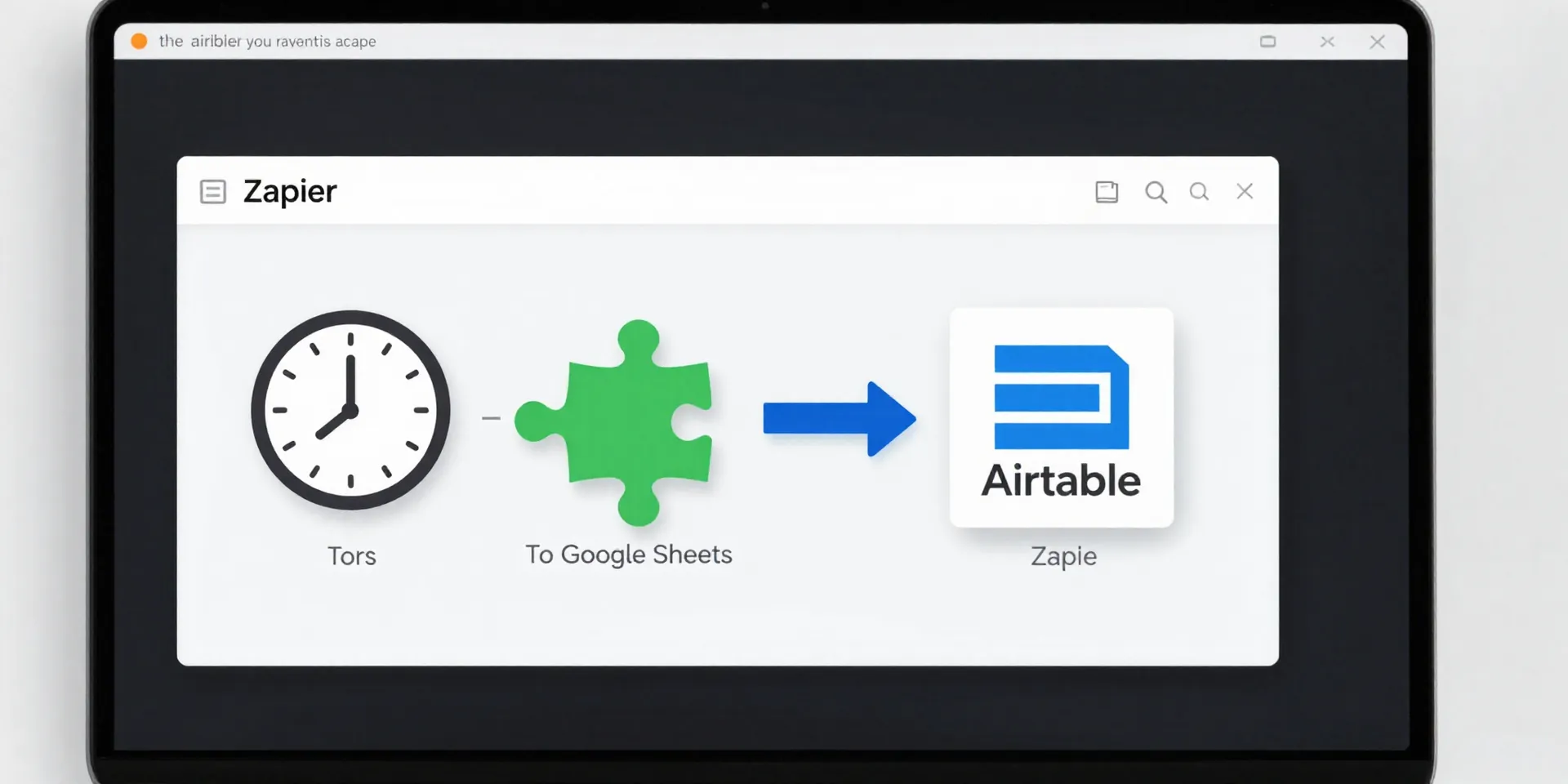
Here's the blueprint. First, you create a new Zap. The trigger? "Schedule by Zapier." Pick your poison—daily at 9 AM, every Monday, the 1st of the month. Then, the action. This is where you fetch your fresh data. Maybe it's "Google Sheets > Get Spreadsheet Row." Or "Google Analytics > Get Report." Zapier pulls the new numbers. Finally, the grand finale: "Airtable > Update Record." You map the fresh data from Step 2 right into the correct field of your chosen Airtable record. Boom. Sync complete.
The "No More Manual Monday" Real-World Example
Let's get specific. Imagine you track weekly website traffic. Your old way: Log into GA on Monday, jot down the number, open Airtable, find the record, type it in. The new way: A Zap scheduled for every Monday at 6 AM. It fires up, grabs the "Sessions Last Week" metric from Google Analytics, finds the correct "Week of [Date]" record in your Airtable "Web Metrics" base, and updates the "Traffic" field. You wake up to a pre-caffeinated report. Actually, you wake up and *don't* think about it, which is the whole point.
Pro-Tips for a Bulletproof Setup
Test with a dummy record first. Always. Set your schedule for a *time the data will actually be ready*. If your CRM updates at midnight, don't run the zap at 11:59 PM. Use the "Find Record" step in Airtable with a unique identifier (like a date field) to make sure you're updating the right row. And for the love of clean data, build in a tiny bit of error handling—add a step to send you a Slack DM if the Zap fails. Trust falls with robots are fine, but you still want a safety net.
Go Take Your Coffee Break. You've Earned It.
This is the part where most articles would summarize everything you just read. I won't do that. You get it. Scheduled Triggers turn Zapier from a reactive tool into an automation powerhouse. You stop being the data janitor. Your reports start living and breathing on their own. Now go build that Zap. Your future self, sipping a calm Monday coffee while your numbers auto-populate, will thank you.